 Adding Sections to a
Document
Adding Sections to a
Document Adding Sections to a
Document
Sections must be added from the template to the document. If no sections are added, the document will be empty. Adding a section also allows you to further customize the documents by directly editing content in the text window.
1. Open an existing document or start a new document
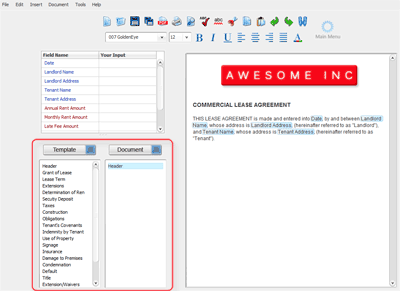
2. A list of sections contained in the template is displayed on the left column. Left-click one time on a section in the template column to highlight it.
3. Click on the Template button, then choose "Add this Section"
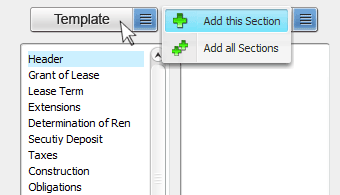
4. The section will be added to your document
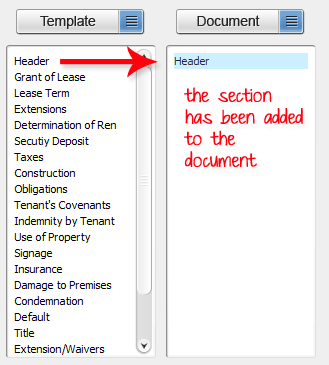
The section has been added to the document. Highlight the section in the document column to edit the section as it will appear in your document.
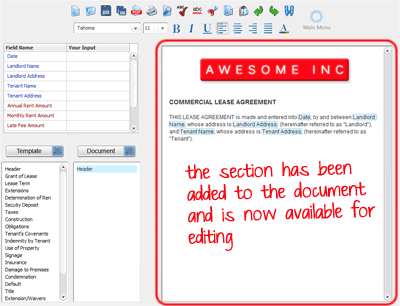
Other methods for adding a section
- Double click on a section in the Template column
- Right click on a section in the Template column and choose "Add Section"
- Drag a section from the template to the document
Add all available sections to a document
It is possible to add every section in a template to your document. There are three methods to perform this action:
- Click the Template button and choose "Add All Sections"
- Right click in the Template column and choose "Add all Sections"
- From the menu bar, choose Document > Add All Sections
Related Help: