 Selecting a Template with
the New Document Wizard
Selecting a Template with
the New Document Wizard
Selecting a Template with
the New Document Wizard
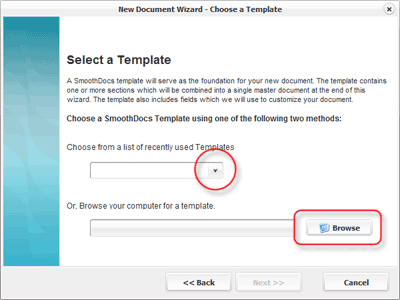
The first step towards creating a new document is to choose a template which will serve as the foundation for your document.
There are two options for choosing a template.
1. A list of recently used templates is provided in a pull down menu (noted by the bar with a down arrow on the right side). Click the down arrow to view the list of recently used templates. If you would like to select one of these templates, simply click on the template file name .
2. Templates can be loaded from any location accessible from your computer including flash drives, CD/DVDs, hard drives and network drives. Click the "Browse" button to access a file manager. Locate the necessary file and press OK.
Once a template has been selected from either the recent template list or the browse option, click the "Next" button .
Note: The "Next" button is not accessible unless a template has been selected.
Related Help: