 Choosing Sections with the
New Document Wizard
Choosing Sections with the
New Document Wizard
Choosing Sections with the
New Document Wizard
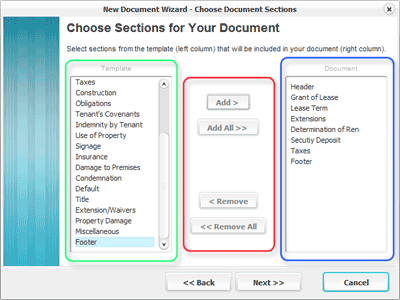
When selecting sections, the New Document Wizard presents two lists:
The list on the left (green) contains available sections .
The list on the right (blue) contains sections which will be included in your document .
It is necessary to choose at least one section to include in a document. Highlight a section from the template (left column) and press the "Add" button to add the section to your document (right column).
Add > : Adds the highlighted section to your document
Add All >> : Adds every section to your document
< Remove : Removes the highlighted section from your document
< Remove All : Removes every section from your document
Note: The "Next >>" button is not enabled unless at least one section has been added to the document.
Note: The New Document Wizard will skip the Choose Sections page if there is only one section in the template. In this case, the section is added automatically.
Related Help: